Payouts for a group of locations
Pay every location into one shared Stripe account, give each gym its own, or mix the two. The group admin sets it up once, from Payouts.
5 min read
In short
All locations→Payouts. In a group, only the group admin sets up Stripe.- Connect a shared account, and gyms with no account of their own move onto it by themselves.
- Any gym can keep its own account instead. Choose per gym in the
Paid intomenu.
Each location in a group is paid into one of two places: the group's shared account, or its own account. You choose per gym, so a group can pay everything into one place, keep every gym separate, or do some of each. Either way each gym's visits, dashboard and exports stay its own. Only the account the money lands in changes.
Climber pays
At one of your gyms
Wall Pass keeps its fee
The platform fee you agreed
The account you chose
The shared one, or the gym's own
Your bank
On Stripe's payout schedule
One shared account for every gym
Step 1: Open Payouts
All locations→Payouts. The top row is the group's shared account. Under it is one row per gym, with where it's paid and whether it's being paid.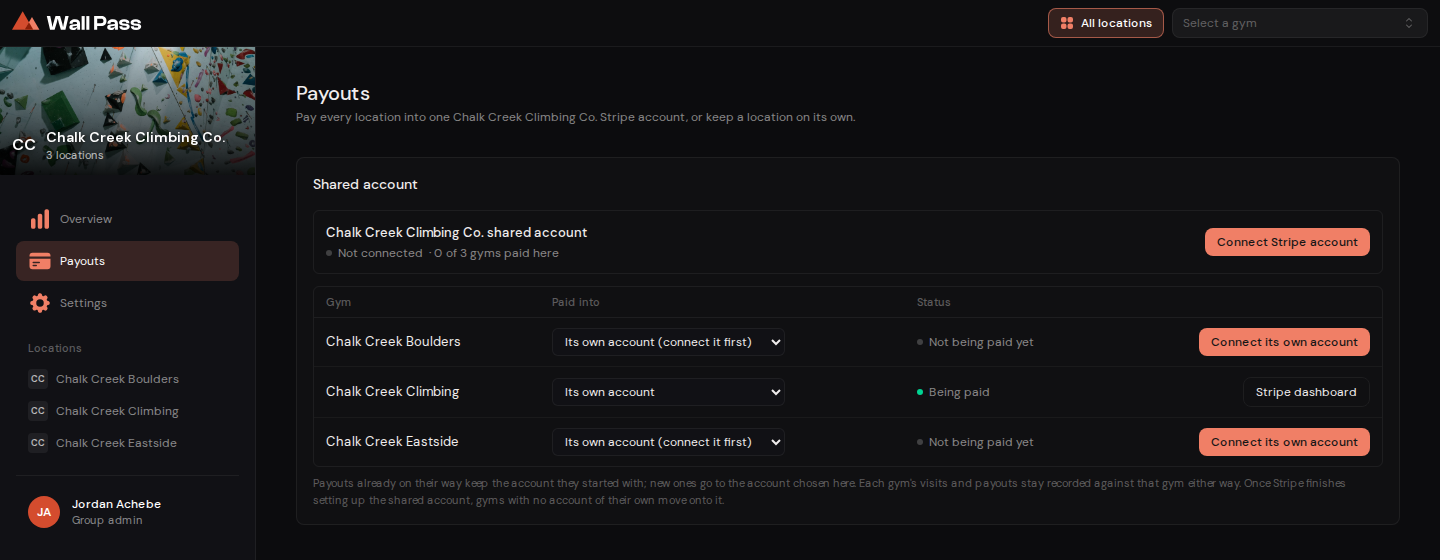
Before setup. Two gyms have nowhere to be paid yet; Chalk Creek Climbing already has its own account. Tap to enlarge. - 1Connects the shared account. Do this once for the whole group.
- 2Where this gym is paid. Options you can't pick yet say why.
Step 2: Press Connect Stripe account
On the shared account's row. Stripe's own form opens and asks for the company's details and where the money goes. It's the same form a single gym fills in, described in connecting Stripe.
Step 3: Come back to Payouts
Stripe brings you back here. For a moment the status reads
Checking with Stripe…, and once it readsReady for payoutsthe account can receive money.Step 4: Your gyms move onto it
As soon as the shared account is ready, every gym without an account of its own switches to it by itself. A gym that already had its own account stays on it until you change its
Paid intomenu.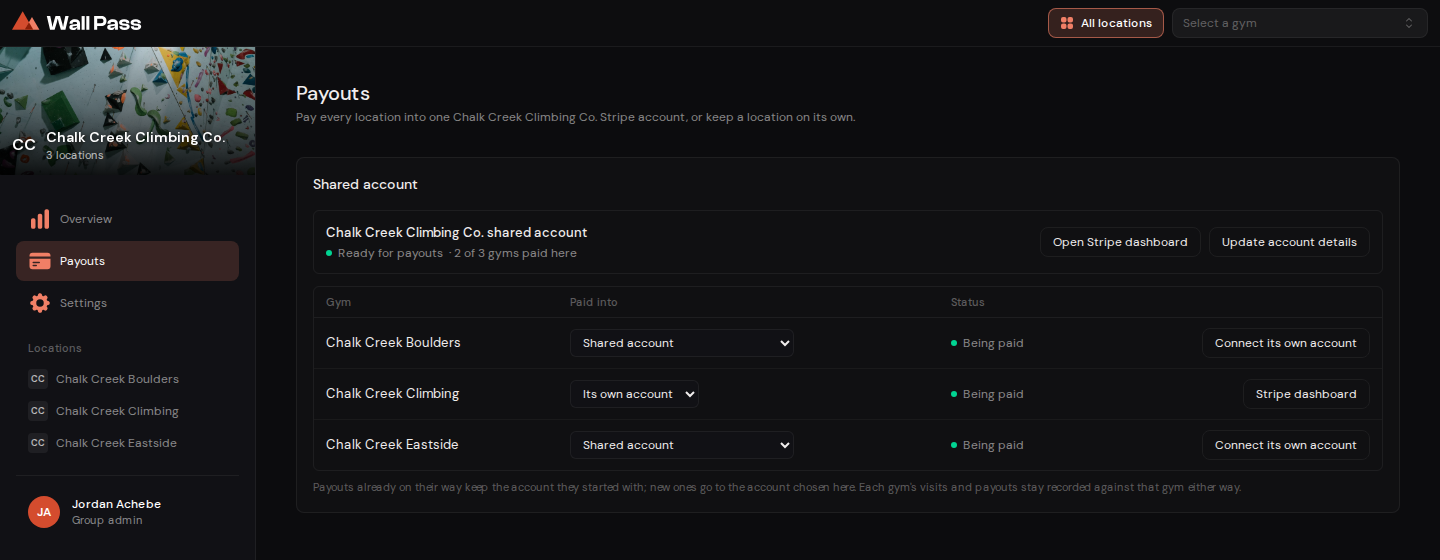
Ready. Two gyms are paid into the shared account and Chalk Creek Climbing kept its own. Tap to enlarge. - 1Switch a gym between the shared account and its own at any time.
A separate account for one gym
Step 1: Press Connect its own account
On that location's row. The same Stripe form opens, this time for that location's own details.
Step 2: Set Paid into to Its own account
If the gym was on the shared account, switch its
Paid intomenu toIts own accountonce Stripe brings you back. A gym that was never on the shared account starts using its own straight away. Its status readsBeing paidwhen it's done.
Do this for every gym and each location is paid separately. Do it for some and the rest share. There's no wrong mix.
Switching a gym later
- Payouts already sent stay put
- A visit's payout keeps the account it started with. Only payouts after the switch go to the new account.
- You can only pick an account that can be paid
- The menu won't offer the shared account until it's ready, or a gym's own account until it's connected. That's what
(finish setup first)and(connect it first)mean. - A gym's own account is kept
- Moving a gym onto the shared account doesn't disconnect its own, so you can switch it back whenever you like.
- The numbers don't move
- Where a gym is paid doesn't change its dashboard or exports. Its revenue is still counted as its own.
What each gym's admins see
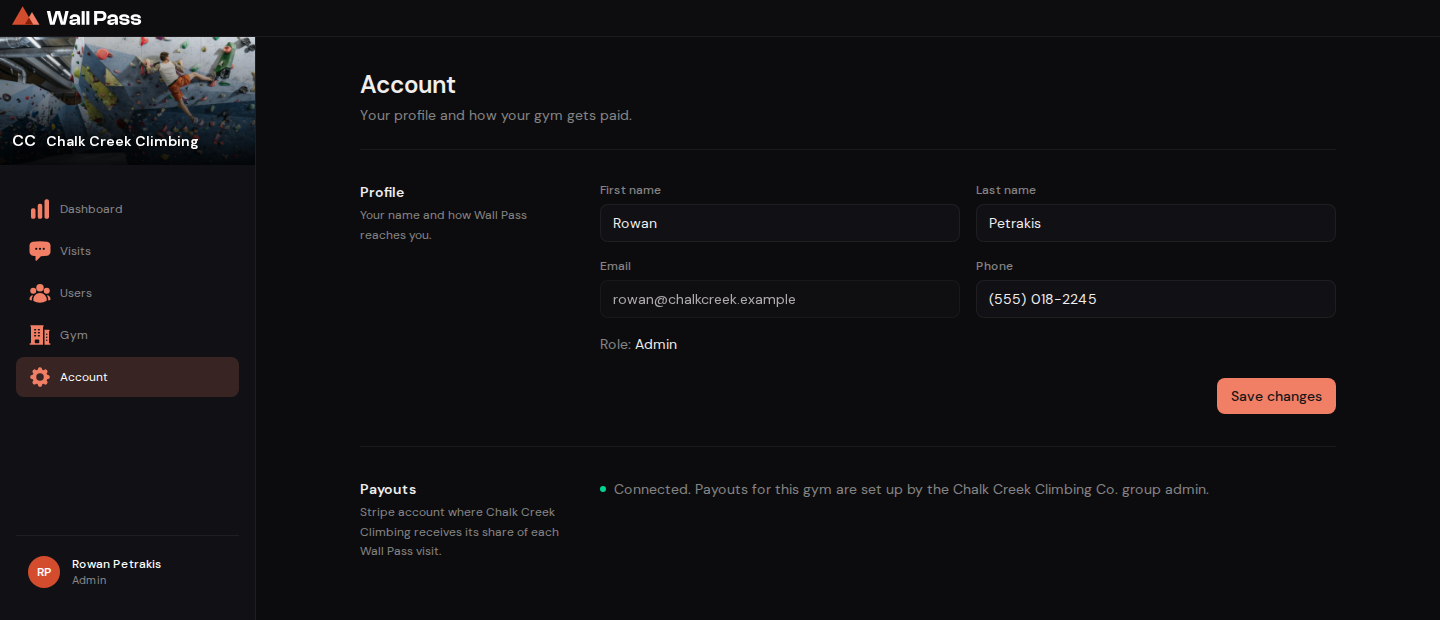
A gym admin at one of your locations sees on Account whether their gym is being paid, and that the group admin set it up. They can't connect, change or open Stripe for their gym, so Stripe questions come to you.
Common questions
A climber visited before any account was ready. Is that money lost?
No. Tell us once the account is ready and we'll send the payout.
We've been asked for another document.
Stripe sometimes pauses an account's payouts until it gets one. Open that account from Payouts: Open Stripe dashboard for the shared account, or Stripe dashboard on a gym's row. The request will be waiting at the top.
That's the end of this track. Back to help home.
Something here wrong, or missing? support@getwallpass.com