Your numbers, and getting them into a spreadsheet
What the dashboard is counting, and the CSV exports for getting it into a spreadsheet.
3 min read
In short
- The top four numbers cover every paid visit since you joined. The charts show this year.
- Net revenue is what your gym earned, after fees and refunds.
- Export gives you three CSVs. Visits have their own export on the Visits screen.
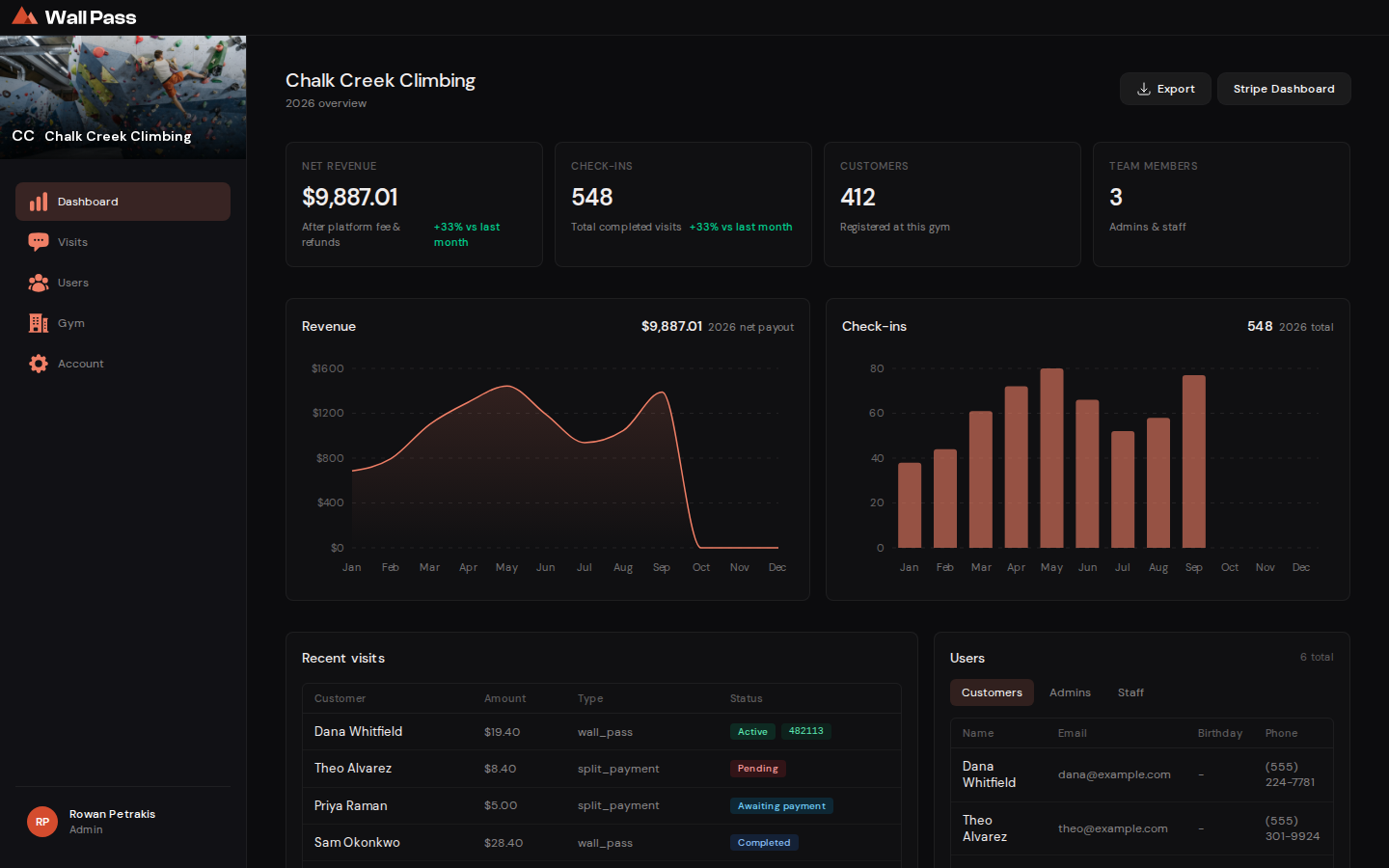
getwallpass.com/admin → Dashboard. The four numbers at the top cover every paid visit since your gym joined Wall Pass, including people climbing right now and visits later refunded. The two charts break this year down by month. Split payments nobody finished paying aren't counted anywhere.
What the numbers mean
- Net revenue
- What your gym earned: visit payments less the platform fee, less anything refunded. Not what climbers were charged, and not a record of transfers. A payout that's still waiting, say from before Stripe was connected, counts here before it reaches you. Stripe shows what has actually been transferred.
- Check-ins
- Every paid visit since you joined, one per climber per visit. The chart below breaks this year down by month.
- Customers
- People who have checked in at your gym at least once, ever.
- Team members
- Your admins and staff.
Exports
The Export button on the dashboard gives you three CSVs: customers, this year's monthly metrics, and your team. Visits have their own Export CSV button on the Visits screen, where you can pick a date range. They all open in Excel, Numbers or Sheets. The monthly metrics file is the one to send your accountant; it's worked out from the same figures as the charts, so the two can't disagree.
That's the end of this track. Back to help home.
Something here wrong, or missing? support@getwallpass.com